
BeeServe Daily Use Guide
For your team, by role. Find your part, read it once, and keep the cheat sheet at the end near the till.
What you see on the tablet depends on your role:
| Role | Tabs you see |
|---|---|
| Owner, managers, assistant manager | Orders, Online, Reservations, Kitchen, Deliveries |
| Front of house | Orders, Online, Reservations, Kitchen, Deliveries |
| Kitchen | Kitchen |
| Driver | Deliveries |
Reservations only shows if your location takes reservations. When you have more than one tab, they sit at the top of the screen.
1 Opening the day
Sign in
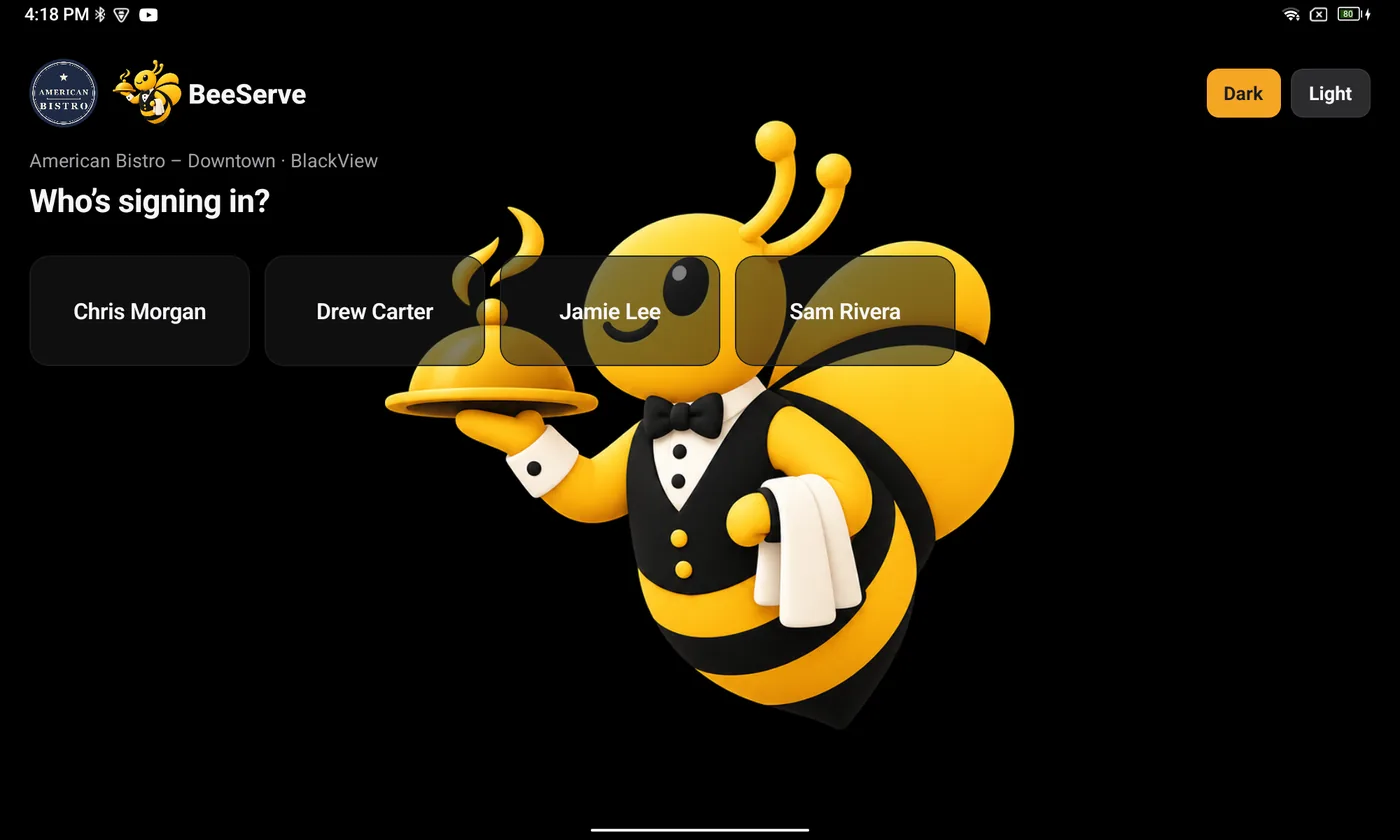
- Wake the tablet. You see Who’s signing in?
- Tap your name.
- Enter your PIN. It says Enter your PIN, (your name).
- If you have more than one role, choose Sign in as and tap the role you are working as today.
- The first time, you are asked to Choose a new PIN. Enter the Current PIN, then the New PIN (4–8 digits) twice. Press Save PIN.
- A wrong PIN says Wrong PIN. After too many wrong tries you are locked out. Ask a manager to unlock you.
If your name is not on the list, a manager has to give you a PIN in the back office.
You can change the Language and the Screen (Dark or Light) on the sign-in screen.
Check your devices
Before the doors open, a manager checks:
- The tablet is live. A small dot at the top is green when the tablet is connected and getting live updates.
- No red or amber banner. A banner at the top tells you if the tablet cannot reach the hub or BeeServe. If you see Cash only: no connection to the internet, card payments will not work yet.
- The printer has paper. Reprint a receipt to check. A manager can also send a test slip from the back office: Configurations, Tablets, Receipt printers, Test print.
- The card reader is on. On the payment screen it shows Card reader: (name) when it is connected.
- The kitchen tablet is signed in by a cook and shows the right station.
- Sold-out items from yesterday are back on sale. Sold out lasts for one day only.
- Online ordering and delivery are not paused. On the Deliveries tab you see whether delivery is open. See chapter 8.
Break and sign out
- Press Break to start a break (see chapter 2).
- Press Sign out when you finish. Always sign out. A tablet that is left signed in can be used by anyone. The tablet also signs you out by itself if nobody touches it for a while (15 minutes unless your owner changed it).
2 Front of house
Take an order
- On the Orders tab you see Open orders. Press New order.
- Choose the Order type: Pick-up, Delivery, At the bar or At a table.
- For a table order, enter the Table. Use the 123 pad or the letters. Your manager may require a table number.
- For a delivery, enter the Delivery address, the Postcode and Name and phone. The screen tells you the fee and whether the postcode is in the area.
- Press Start order.
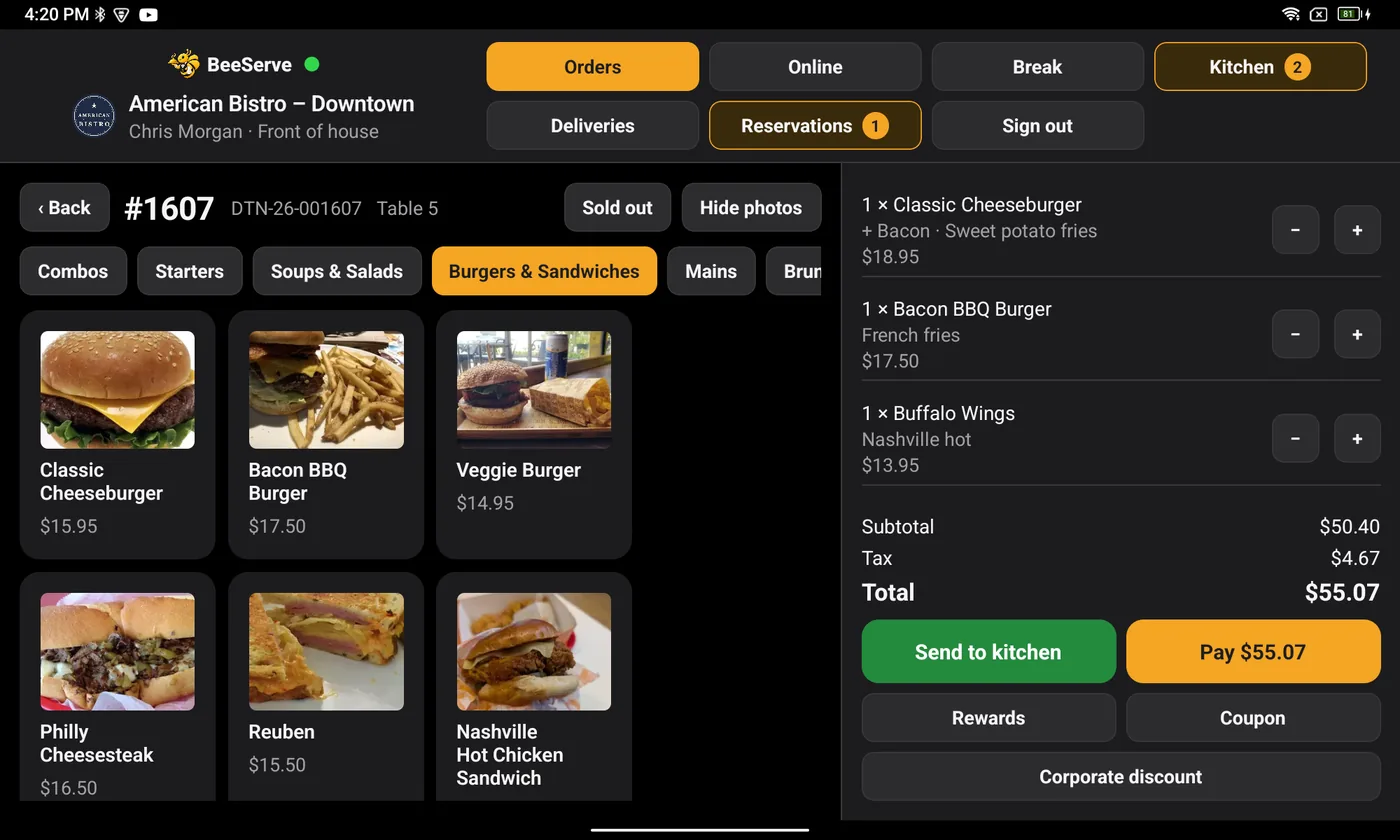
- The menu is on the left. Tap a section at the top, then tap an item to add it. The order is on the right.
- Use Hide photos or Show photos if the photos get in the way.
- To take an item off before it is sent, set its quantity down. After it is sent to the kitchen, a manager (or someone allowed to void) taps Remove.
- When ready, press Send to kitchen.
- For a pick-up at the counter, a box shows Ready time. It says about (n) min. Press Change if you want another time, then Save. If there is no estimate, the order is sent without a ready time.
Options (sizes, extras, leave outs)
When an item has choices, a box opens.
- A group marked Required must be filled in. Optional can be skipped.
- Tap the choices. You see up to (n) when there is a limit, and (n) free at most for free extras.
- Items that ran out show Sold out and cannot be chosen.
- Press Add.
- If something is missing you see a message, for example Choose a Size or Choose at least 1 in Side.
Meal deals (combos)
A meal deal has a Meal deal tag.
- Tap the deal. For each group it says Choose (n) in (group). Tap your picks.
- Included items say Included. Some picks have an extra charge.
- Press Save.
- The deal now shows as one line with its picks under it. On that line you see three buttons:
- − takes one deal off.
- + adds another deal.
- C lets you Change the choices in the deal.
- These buttons work until the deal is sent to the kitchen. After that, a manager can use Remove.
Age-restricted items
If an item needs an ID check, a box says Check ID. It shows the age the customer must be and the date they must be born on or before. Check their ID, then press I checked their ID. Press Cancel if they cannot show it.
Discounts and coupons
You cannot type a free discount. Discounts come from these buttons, shown on the order:
- Coupon: type the code in Coupon code and press Apply, or press Scan the coupon. If the order already has a discount, the screen says a manager can approve it. The manager enters their Manager’s PIN and presses Approve.
- Corporate discount: type the guest’s work email and press Send code. The guest reads you the 6-digit code from their email. Type it and press Apply.
- Rewards: see below.
- Promotions go on by themselves when the guest qualifies. You see a line “Promotion · (name)”. Only a manager can take a promotion off. They choose their name and type their PIN.
Press Remove to take a coupon or corporate discount off. You can only do this before the order is paid.
Rewards members
- Press Rewards.
- Type the guest’s Phone, email or rewards number and press Find. Or press Scan member card and hold the member’s QR code up to the camera.
- Press Add to this order. The member’s name shows on the order.
- A new guest? Press New member. Enter Name, Email and Phone number. Tick The guest agrees to the program terms. Press Sign up and add to order. They get a welcome email.
- To use points, choose Use points. You see how many points are worth how much. The member must have confirmed their email first. If your owner asks for a code, press Email the code to the member and type the code they read out.
- Points are taken off before the order is paid. The receipt shows Points earned this visit.
Take payment
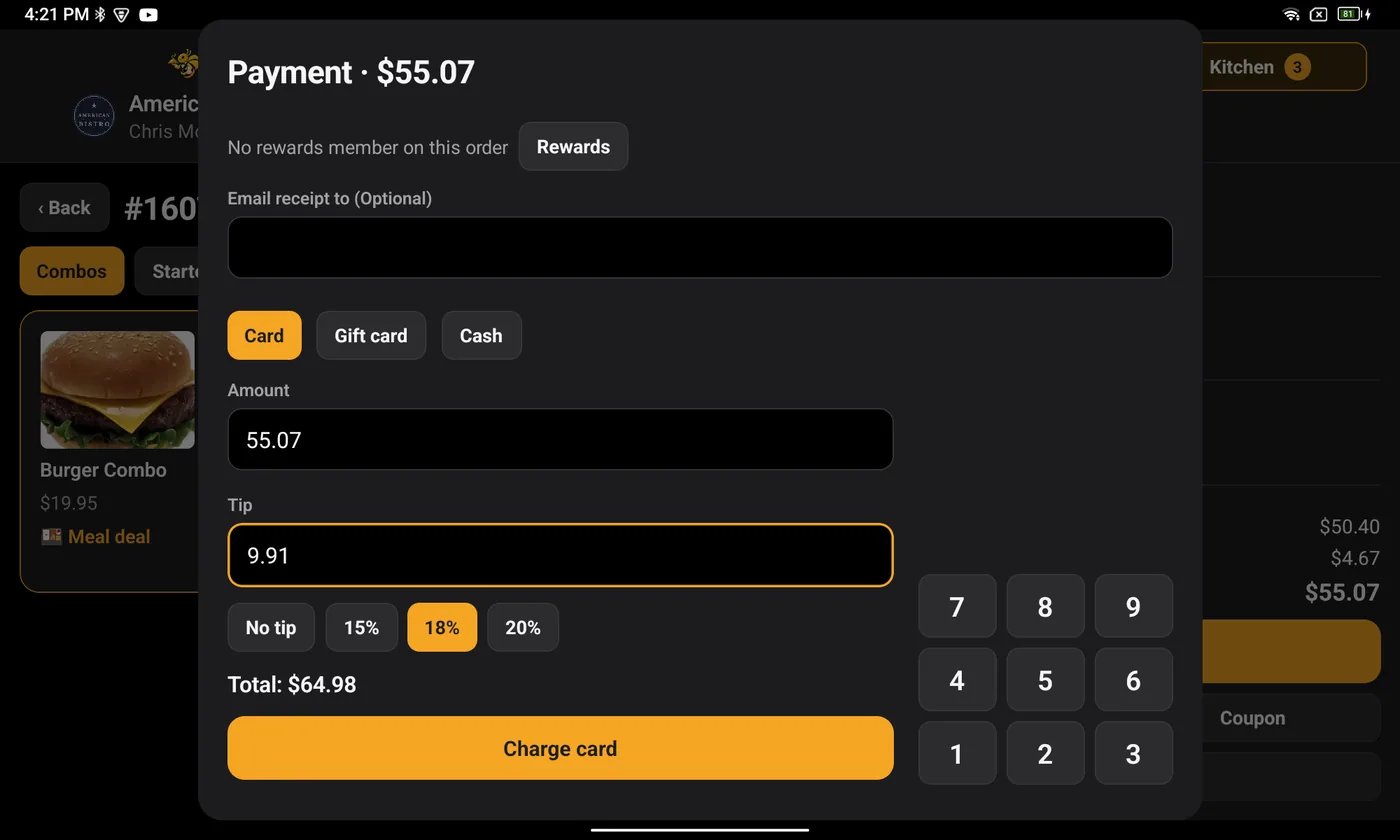
- Press Pay (amount).
- For a split bill, change the Amount to the part this person pays. Repeat for the next person until To pay is zero.
- Add a Tip if the guest wants to. Quick tip buttons show, and No tip.
- Choose how to pay:
Cash
- Press Cash.
- Enter Cash received, or press Exact.
- The screen shows Change to give.
- Press Take cash.
Card, or tap to pay
- Press Card, then Charge card.
- If no reader is connected, choose Use this tablet (tap to pay), Card reader (USB) or Card reader (Bluetooth).
- Say Ask the customer to tap or insert their card.
- Press Take card.
- If the card is declined, you see The card was declined. Try another card or cash. Try again or take cash.
- If you cannot press Charge card and see Card payments aren’t set up here yet, tell a manager. The owner has to finish Stripe.
Gift card
- Press Gift card, then scan the card or type its number.
- Ask the guest for the card’s PIN. It is in the card email or on the card.
- Check the balance. If the order is more than the balance, pay the rest another way.
- Press Pay with gift card. You see how much is left on the card.
Receipts
After payment the receipt shows. You can:
- Press Print receipt or Print again.
- Press Email receipt, type the address and press Send. A rewards member’s receipt goes to their email unless you press Don’t email.
- The printer says if it is out of paper, the lid is open, or it is offline. Fix it and print again. If the printer was offline, the receipt prints by itself once it is fixed.
Every payment gets a receipt.
Sell or check a gift card
- On the new order screen, press Gift cards.
- Choose Sell or top up or Check a card.
- To sell a New digital card, enter the Email the card is sent to. Add a recipient name and a message if you like.
- For a Physical card or top-up, scan the card or enter its Card number, then press Look up. A card from stock can be loaded as New card from stock.
- Press Take payment.
- To check a balance, choose Check a card, scan it and enter the PIN.
- If the guest asks for a small balance in cash and your owner allows it, you see Cash out.
Adjust a paid order (refund items)
Only roles allowed by the owner see this, and only for a limited time after payment.
- On Orders, press Today’s completed.
- Open the order and press Adjust (refund items). For an online order that is in the kitchen, it is on its card in the Online tab.
- Under What comes off, choose the items and quantities.
- Under Why, choose a reason. Some reasons need a note. Read the hint:
- Not made: the kitchen stops making it if it is not ready.
- Made: the item’s cost counts as waste.
- Depends: counts as made if the kitchen had started it.
- Check Money goes back to. If the order was paid in two ways, you can press Change split.
- Press Refund (amount).
- If the customer paid in cash, hand them the cash. The screen tells you how much.
- The kitchen is told. A refund receipt is emailed if the order has an email.
Tips are not refunded here. A manager does that in the back office.
If you see It’s too late to adjust this order on the tablet, ask a manager to do it in the back office.
Void an order
- Open the order. It must not have any payment yet.
- Press Void order.
- Type why. Press Void order.
You only see this button if your role may void orders. Orders already sent to the kitchen show a “cancelled” notice there, so the kitchen stops.
Take a break
- Press Break at the top.
- The screen turns amber and says (Name) is on a break.
- To come back, press End break. Enter your PIN.
- A cook must finish their lines first. If the tablet refuses, finish the lines and try again.
- A manager can end your break from the kitchen screen or the back office.
Sign out
Press Sign out at the top.
3 Online orders and deliveries
Online orders
The Online tab shows orders guests paid for on the website or in the BeeSavor app. A new order plays a sound. The tab shows a count of orders waiting.
You do not need to accept an online order. It is accepted when it is paid. It goes to the kitchen at the right time by itself. If you cannot make it, a manager can press Turn down on the Online tab, give a reason, and the guest is refunded in full and told by email. You cannot turn down an order the kitchen has already started.
Each card shows the guest, the pickup time, what they ordered, any notes, and whether the guest left a tip.
- Pickup at (time) or As soon as it’s ready.
- Kitchen gets it at (time): a later pick-up waits, and goes to the kitchen at the right moment.
- In the kitchen: #(number): the kitchen has it.
- Ready for pickup: #(number): the kitchen finished it.
- Badges tell the source: Online, Online pre-order, App and App pre-order.
Turn an order down
Only until the kitchen gets it.
- Press Turn down on the order. Only a manager sees this button. Others see A manager can turn it down until the kitchen gets it.
- Type a Reason (the customer sees it).
- Press Turn down and refund.
- The customer gets the whole amount back on their card and an email with your reason.
Change the ready time
Counter pick-up orders show Ready around (time). Press Change, choose a new time and press Save. It says Ready time changed.
Hand over the order
When the kitchen marks it ready, the card says Ready for pickup. Check the name or the number, hand it over, and serve it in the Kitchen tab if your role does that.
Deliveries
The Deliveries tab shows:
- Whether delivery is open: for example Delivery is open, Delivery is closed now, Delivery is paused or No driver is signed in, so delivery isn’t available.
- Drivers on shift.
- Each delivery with Food ready or Kitchen still preparing, and Paid or Not paid yet. A delivery goes out only when it is paid.
- Waiting for a driver or On the way: (driver).
A manager can press Pause delivery and Resume delivery. Delivery also pauses by itself when it is too busy.
To take a delivery on the tablet, a driver or manager presses Take delivery when the food is ready. When they are back, press Delivered. Front-of-house staff cannot take a delivery.
Delivery orders you start at the till are paid at the till before they go out. If the items are less than the minimum, you see Delivery needs items of at least (amount).
4 Reservations
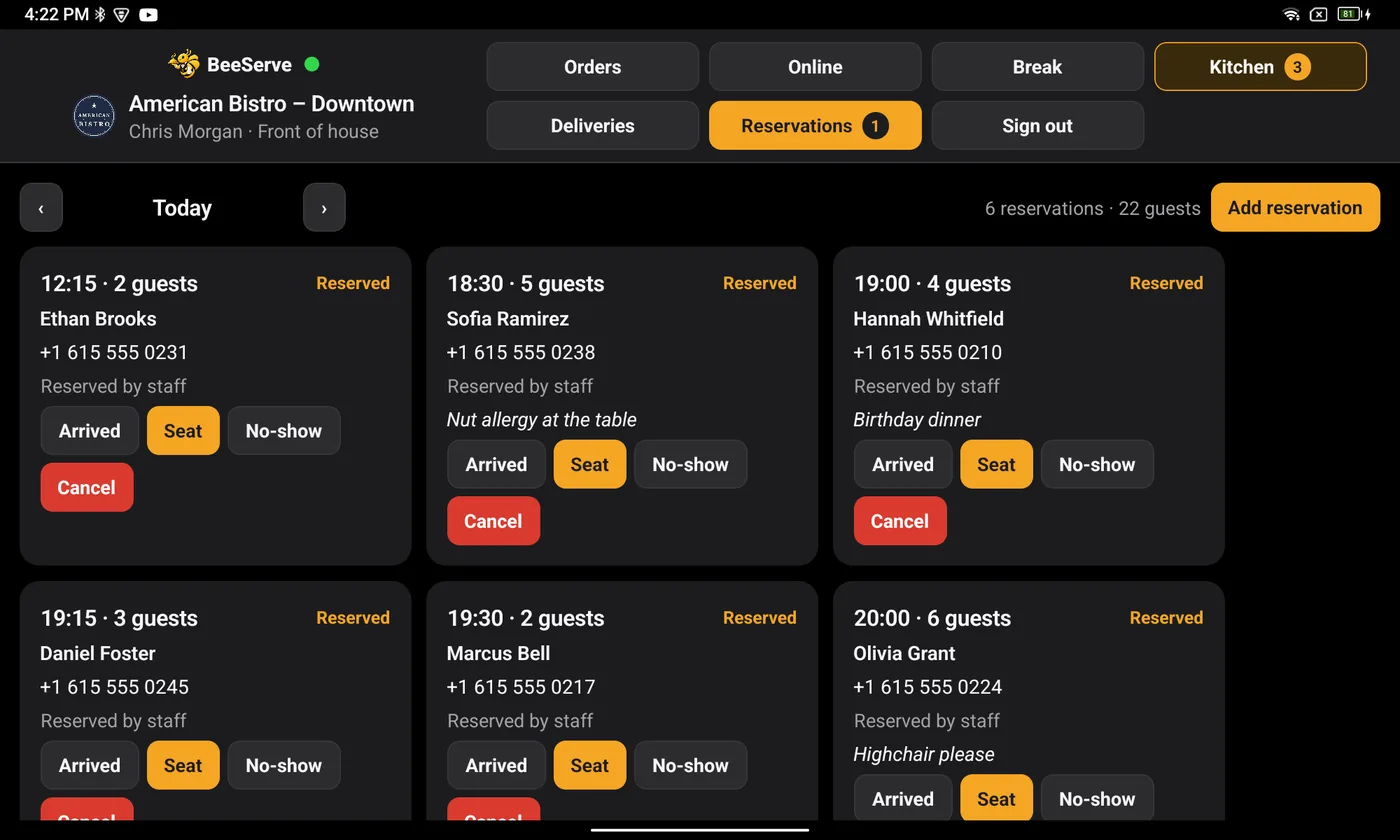
The Reservations tab shows the day’s reservations. It shows a count at the top, for example “6 reservations · 18 guests”. The tab lights up when there is news: a new reservation online, a change, a cancellation or a late notice.
Add a reservation (for a phone call)
- Press Add reservation.
- Choose the Time, Guests, Name and Phone. Add an Email (optional). With an email, the guest gets the confirmation and can change or cancel it. Add a Note (optional).
- If the slot is full, the button says Reserve anyway. Otherwise press Add reservation.
When the guest comes
Each reservation moves through: Reserved, Arrived, Seated, Finished.
- When they arrive, press Arrived.
- If the table is not ready, press Table ready when it is. The guest gets an email, and a notification on their phone if they booked in BeeSavor. If the guest left no email, tell them yourself.
- Press Seat. Choose the Table, then Seat or Seat and start order. The second one opens a table order straight away.
- When they leave, press Finished.
- If they do not come, press No-show. If you press the wrong button, press Undo.
Cancel a reservation
- Press Cancel on the reservation.
- Type a reason if you like. The guest gets an email with your reason.
- Press Cancel reservation. To keep it, press Keep.
Use the arrows to look at other days. Press Back to today to return.
5 Kitchen screen
Cooks sign in on the kitchen tablet. Front of house and managers can see this screen too, to hand food over.
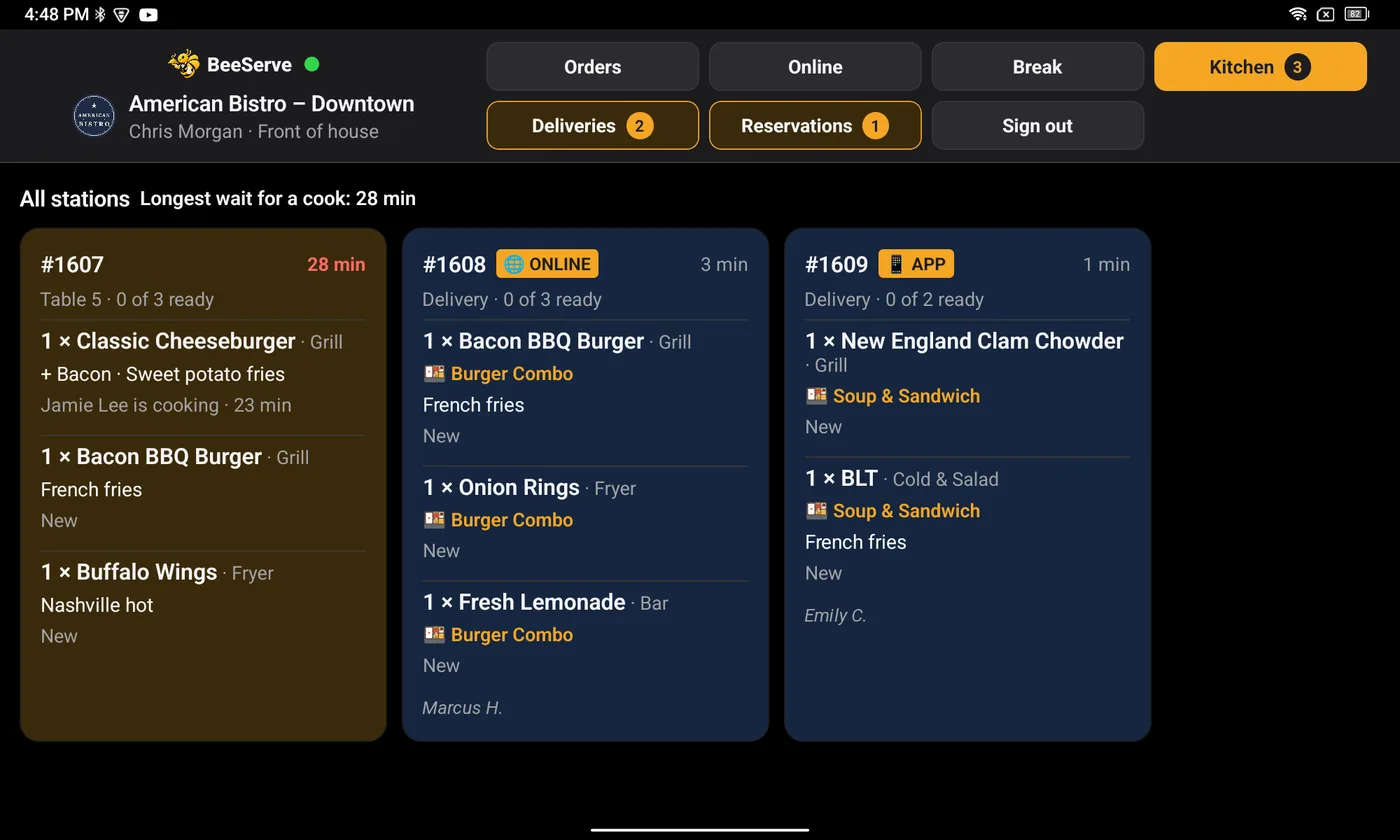
The screen
- The top shows the station this tablet is for, or All stations.
- It shows Longest wait for a cook: (n) min and Longest at the pass: (n) min.
- On a break lists cooks who are away.
- Tickets are in order, oldest first. Each shows the order number, the minutes it has waited, and Round (n) for items added later.
- Item choices are on each line. Things to leave out are in red.
- Online orders are marked ONLINE and app orders APP.
- Lines have the colour of their state: New, Preparing, Ready.
Cook an item
- Press Start on a line to claim it. The first cook to tap gets it. Other cooks see (name) is cooking.
- Cook it. You see You’re cooking this and the minutes.
- When done, press Ready. Only the cook who started it can do this. A manager can too.
- For many lines, press Start all or Ready all on a ticket.
- If you tapped the wrong line, ask a manager to press Back to New.
Stations
A station tablet shows only the lines for its station. It also shows how far the rest of the order is at the other stations, for example “Grill: 1 of 2 ready”. A tablet set to All stations shows every line, with the station name.
Hand over (front of house)
- When a line says Ready, press Served when it goes to the guest.
- For a whole order, press Serve all ready (n).
- The ticket shows “(n) of (total) ready”.
Cancelled orders
If an order is cancelled, the ticket says ORDER CANCELLED — stop. Stop making it. Press Clear to remove it.
Managers
A manager can press Reassign on a line that is being made, then choose who cooks it. A cook sees “On a break” or how many lines they are cooking.
Sold out
Press Sold out to mark an item sold out for today. See chapter 8.
6 Kiosk
Coming soon.
7 Drivers
Drivers use a phone. You can use the web page (the driver page) or the BeeServe app. The app is better: it shares the driver’s location, so the guest can follow the delivery. The web page cannot.
First time on a phone
- A manager makes a code in the back office, under Delivery, Driver phones.
- On the phone, scan the QR code the manager shows you, or open the driver page.
- Enter the Pairing code. Press Set up this phone. You only do this once.
- If you see That code is for a tablet, ask the manager for a driver phone code.
Sign in
- The phone shows Who’s driving? Tap your name.
- Enter your PIN and press Sign in.
- The first time you are asked to choose your own PIN. Enter the New PIN twice. It must be 4 to 8 digits. Do not use one digit repeated or a sequence like 1234. Press Save and sign in.
- At the top it says Signed in until (time). Your sign-in ends at the end of delivery hours. Then you see Your sign-in ended. Sign in again to keep delivering.
Make a delivery
- You see two tabs: Waiting and Mine.
- Under Waiting, each delivery shows Food ready or Kitchen still preparing. Do not take one that says Not paid yet: it can’t go out.
- When the food is ready, press Take. The delivery moves to Mine.
- Press Open in maps to see the address. Press Call to call the customer.
- In the app, the phone shares your location with the customer and the restaurant while you have deliveries. When you first start, allow location. If you see that location is not allowed all the time, open Settings, then Permissions, then Location, and choose Allow all the time. Sharing stops when the last delivery is delivered.
- At the door, press Delivered: take photo. Take a photo of the order at the door.
- If you cannot take a photo, press I couldn’t take a photo. Say why, for example “handed to the customer”. Press Delivered.
- If asked, allow the camera.
Sign out
Press Sign out when your shift ends.
8 Managers
Sold out
- On the order screen, press Sold out (managers and front of house). On the kitchen screen, cooks and managers have it too.
- The list says Tap to mark sold out for the rest of today, or back on sale. Tap an item. It shows Sold out or On sale.
- Another way: press and hold an item on the menu, then press Confirm. It says “Mark (item) sold out for the rest of today? It disappears from every tablet here.”
- In the back office, use Mark sold out in Item settings, or Mark sold out today on an option.
Dashboard
The back office home page is a live dashboard for today. It updates by itself and says Live · updated (time). If it says Not updating — check the connection, check your internet.
It shows:
- Sales today, compared with last week.
- Orders finished and the average order.
- Average table bill, Tips, Refunds and Gift cards sold.
- Average kitchen time, Late pickups and Late deliveries.
- New reviews and Adjustments.
- Kitchen by channel, Tables in use, Pickups and Deliveries.
- Orders finished per hour and a heat map of orders placed.
- On the tablets now: who is signed in.
Use Show to pick a location or All my locations.
Orders and refunds
Under Desk, Orders, find any order. Completed orders cannot be changed. Use Refund items to take items off a paid order, or Refund to refund an amount. This is the way to refund a tip.
Who is signed in
Under Desk, Who’s signed in, press End session if someone forgot to sign out or a tablet crashed.
Reviews
Under Desk, Reviews: check new reviews in To check, and press Show or Hide.
End of day
BeeServe has no “close the day” button. There is no cash-up screen either: count your cash the way you do now, and check the day’s sales in the back office reports.
A simple routine:
- Check the Orders tab for Open orders. Finish or void anything left.
- Check Paid, not sent to the kitchen. Open each order and press Send to kitchen, or fix it.
- Check the Kitchen tab is clear. Press Clear on cancelled tickets.
- Check Deliveries has nothing waiting.
- Pause delivery or online orders if you stop early.
- Look at the dashboard: sales, refunds and tips.
- Have everyone Sign out.
Reports
Under Data analytics, Reports has these tabs, depending on your role: Sales, Profit, Tax, Kitchen, Delivery, Coupons, Promotions, Meal deals, Corporate, Gift cards and Rewards.
- Choose From and To dates, and Group by Location, Brand or Day.
- Press Download for Excel to save a copy.
- Kitchen shows waiting, cooking and pass times by hour, item, station and cook. Its Staffing view shows how many cooks you need for each hour.
- Tax shows what was collected and refunded for each tax office.
- Delivery shows time on the road by driver, zone, day and hour.
Customers and gift cards
- Rewards customers lists members, their points and history.
- Gift cards shows cards, batches and cards bought online.
9 When something goes wrong
No internet
- If the banner says Cash only: no connection to the internet. Orders and the kitchen keep working. take cash only. Orders still go to the kitchen.
- These need the internet and are refused while it is down: card payments, gift cards, most coupons, corporate discounts, using reward points, refunds and changes to paid orders, turning down an online order, changing a booking, pairing a tablet, changing a PIN and emailing a receipt.
- Online orders that already reached the restaurant still show and can be made. New online orders arrive when the internet is back.
- Orders wait and are sent when the internet returns.
- If a refund says Needs the internet: try again in a moment, wait and try again.
The tablet cannot reach the hub
You see This tablet can’t reach this location’s hub or a banner at the top.
- Check the tablet is on the right Wi-Fi network.
- Check the hub is switched on and its network cable is in.
- Wait. The tablet tries again every 10 seconds.
- Still stuck? Call BeeServe support. The number is on the screen. Or ask your manager.
- New orders wait until the hub is back.
The tablet cannot reach BeeServe (no hub)
You see This tablet can’t reach BeeServe. Check the Wi-Fi. New orders wait until it is back.
The printer does not print
- Read the message on the receipt screen:
- Printer: out of paper.
- Printer: lid open.
- Printer: offline.
- Receipts print through the hub, which this tablet can’t reach right now.
- Fix it. Put in paper, close the lid, or check the printer is on and plugged into the network.
- Press Print again. If the message says The receipt prints by itself once it’s fixed, you do not need to.
- Still stuck? A manager checks the printer under Configurations, Tablets, Receipt printers, and presses Test print.
The card reader does not work
- On the payment screen you see No card reader connected yet. Choose Use this tablet (tap to pay), Card reader (USB) or Card reader (Bluetooth).
- Check the reader is on, charged and plugged in.
- If the card is declined, try another card or take cash.
- If you see Card payments aren’t set up here yet, tell the owner.
- Cash always works.
Wrong PIN or locked out
Ask a manager to unlock you in the back office.
A tablet is lost or broken
Tell a manager. They can put a spare in its place and retire the broken tablet. Anyone signed in on it is signed out.
The kitchen ticket looks wrong
Ask a manager. They can reassign a line or send it back to New.
Something else
Contact your manager or BeeServe support.
10 Quick reference
Front of house
- Sign in: tap your name, enter PIN.
- Orders, New order, choose Order type, Start order.
- Tap items. Choose options. Press Send to kitchen.
- Pay, choose Cash, Card or Gift card. Split with Amount.
- Combo line: −, +, C to change choices.
- Coupon, Rewards, Corporate discount for discounts.
- Today’s completed, Adjust (refund items) to refund.
- Online tab: watch the sound. Ready orders are handed over.
- Break and Sign out are at the top.
Kitchen
- Sign in with your PIN.
- Start claims a line. Ready when done.
- Start all or Ready all for a whole ticket.
- Red = leave it out.
- ORDER CANCELLED — stop: stop, then Clear.
- Sold out if you run out.
- Break when you need one (finish your lines first).
Drivers
- Scan the code once. Then choose your name and enter your PIN.
- Waiting, Take when food is ready and paid.
- Open in maps, Call.
- At the door: Delivered: take photo. No photo? I couldn’t take a photo.
- Sign out when done.
Managers
- Dashboard on the back office home page.
- Sold out on the order or kitchen screen.
- Turn down an online order until the kitchen has it.
- Pause delivery and Resume delivery on the Deliveries tab.
- Who’s signed in: End session.
- Approve a coupon with your PIN.
- Take off a promotion: choose your name and enter your PIN.
- End of day: no open orders, nothing unsent, kitchen clear, everyone signed out.
- Problems: check Wi-Fi, check the hub, check the printer, then call BeeServe support.